> ## Documentation Index
> Fetch the complete documentation index at: https://docs.sharc.sh/llms.txt
> Use this file to discover all available pages before exploring further.
# Codex
> Add SHARC to OpenAI Codex (CLI/TUI and GUI)
Codex supports MCP servers via both its CLI/TUI and the desktop GUI.
## CLI / TUI
Add SHARC with one command:
```bash theme={null}
codex mcp add sharc --env SHARC_API_KEY=sk_mcp_... -- npx -y @sharc-code/mcp@latest
```
Verify:
```bash theme={null}
codex mcp list
```
You should see `sharc` listed alongside any other MCP servers, with status `enabled`.
Codex uses `--env KEY=VALUE` (repeatable) and **requires** the `--` separator before the launch command.
## Desktop GUI
In the Codex desktop app, open **Settings → MCP servers → Add server** and fill in the form:
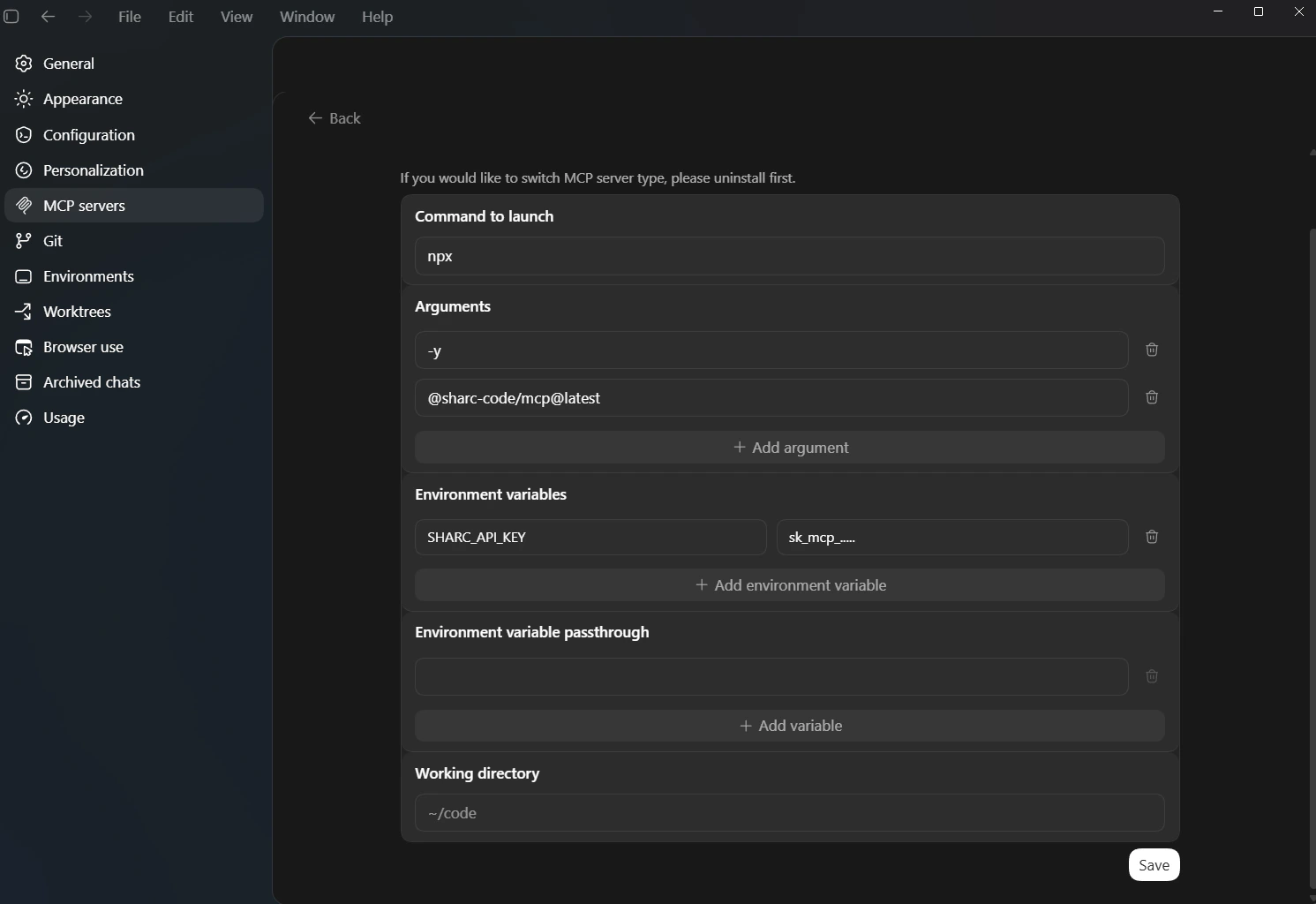 Use these values:
* **Command to launch**: `npx`
* **Arguments**:
* `-y`
* `@sharc-code/mcp@latest`
* **Environment variables**:
* `SHARC_API_KEY` = `sk_mcp_...`
* **Environment variable passthrough**: leave empty
* **Working directory**: leave empty
Each argument must be on its own row. Putting `-y @sharc-code/mcp@latest` in a single row sends it as one argument string, which `npx` won't parse correctly.
Click **Save** and restart Codex.
## Verify
Ask Codex:
```
> List the MCP tools you have available
```
You should see seven SHARC tools (`index_codebase`, `search_code`, `clear_index`, `get_indexing_status`, `start_watch`, `stop_watch`, `get_watch_status`).
## Updating the API key
CLI:
```bash theme={null}
codex mcp remove sharc
codex mcp add sharc --env SHARC_API_KEY=sk_mcp_NEW... -- npx -y @sharc-code/mcp@latest
```
GUI: open the SHARC server in **Settings → MCP servers**, edit the `SHARC_API_KEY` value, and **Save**.
## Troubleshooting
### `MCP error -32000: Connection closed`
This usually means the launch command failed. Check that:
* `npx` is on your PATH (run `npx --version` in a terminal)
* `SHARC_API_KEY` is set on the SHARC server entry
* You're online — `npx` fetches the package on first run
Use these values:
* **Command to launch**: `npx`
* **Arguments**:
* `-y`
* `@sharc-code/mcp@latest`
* **Environment variables**:
* `SHARC_API_KEY` = `sk_mcp_...`
* **Environment variable passthrough**: leave empty
* **Working directory**: leave empty
Each argument must be on its own row. Putting `-y @sharc-code/mcp@latest` in a single row sends it as one argument string, which `npx` won't parse correctly.
Click **Save** and restart Codex.
## Verify
Ask Codex:
```
> List the MCP tools you have available
```
You should see seven SHARC tools (`index_codebase`, `search_code`, `clear_index`, `get_indexing_status`, `start_watch`, `stop_watch`, `get_watch_status`).
## Updating the API key
CLI:
```bash theme={null}
codex mcp remove sharc
codex mcp add sharc --env SHARC_API_KEY=sk_mcp_NEW... -- npx -y @sharc-code/mcp@latest
```
GUI: open the SHARC server in **Settings → MCP servers**, edit the `SHARC_API_KEY` value, and **Save**.
## Troubleshooting
### `MCP error -32000: Connection closed`
This usually means the launch command failed. Check that:
* `npx` is on your PATH (run `npx --version` in a terminal)
* `SHARC_API_KEY` is set on the SHARC server entry
* You're online — `npx` fetches the package on first run