

CLI / TUI
Add SHARC with one command:sharc listed alongside any other MCP servers, with status enabled.
Codex uses
--env KEY=VALUE (repeatable) and requires the -- separator before the launch command.Desktop GUI
In the Codex desktop app, open Settings → MCP servers → Add server and fill in the form: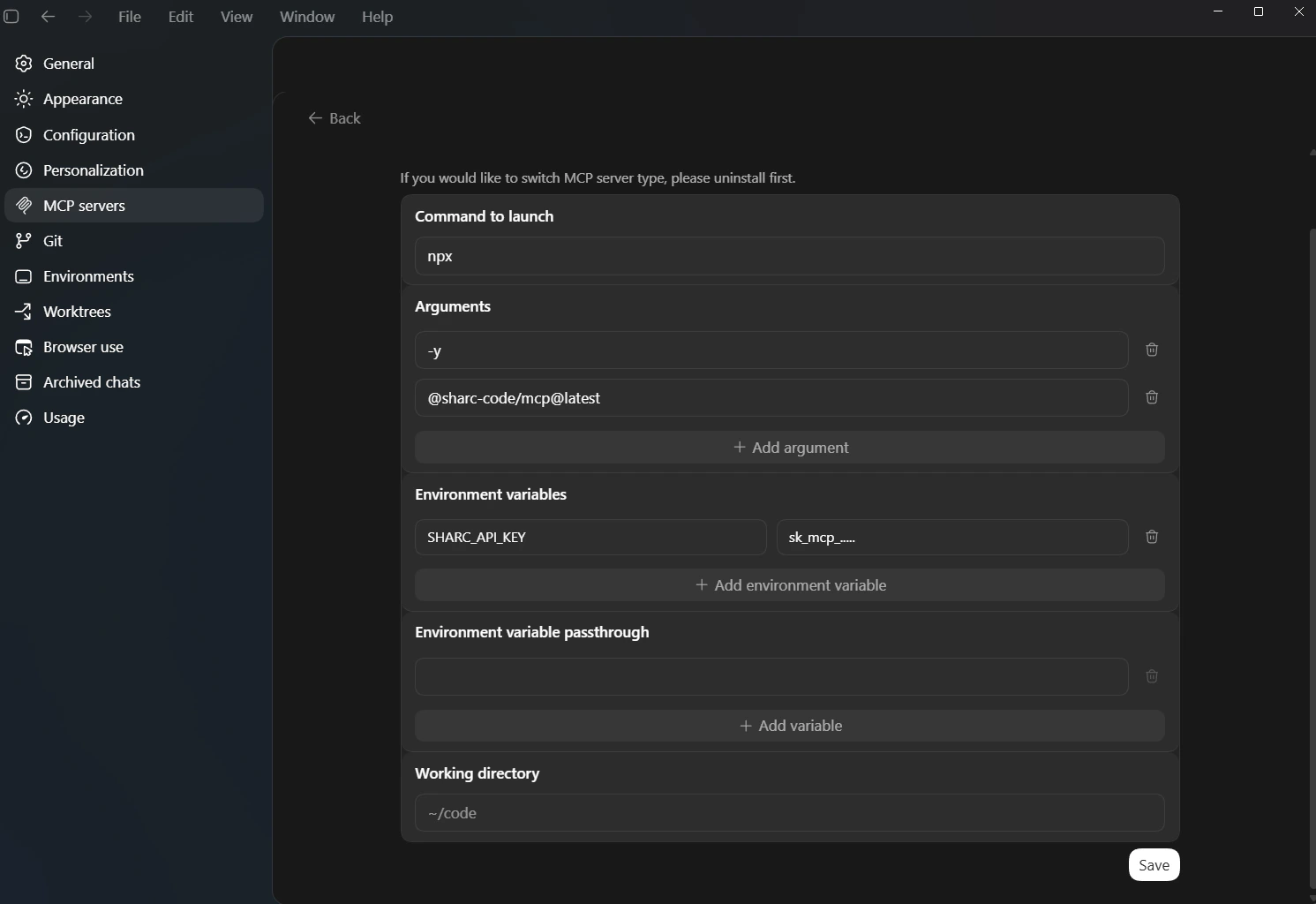
- Command to launch:
npx - Arguments:
-y@sharc-code/mcp@latest
- Environment variables:
SHARC_API_KEY=sk_mcp_...
- Environment variable passthrough: leave empty
- Working directory: leave empty
Verify
Ask Codex:index_codebase, search_code, clear_index, get_indexing_status, start_watch, stop_watch, get_watch_status).
Updating the API key
CLI:SHARC_API_KEY value, and Save.
Troubleshooting
MCP error -32000: Connection closed
This usually means the launch command failed. Check that:
npxis on your PATH (runnpx --versionin a terminal)SHARC_API_KEYis set on the SHARC server entry- You’re online —
npxfetches the package on first run